This is the abridged developer documentation for Hunk
# Hunk documentation
> Find the Hunk guide, workflow, configuration, or reference you need.
Hunk is a terminal diff viewer for reviewing complete changesets and keeping agent rationale beside the code it explains. Use this page to jump directly to the guide or reference you need. ## New to Hunk? 1. [Install Hunk](/docs/start/install/). 2. Open your working tree with `hunk diff`. 3. Follow the [quick start](/docs/start/quick-start/) to learn the review stream and navigation model. ## Browse the docs [Start here](/docs/start/install/)Install Hunk, open your first review, and learn the keyboard and mouse controls. [Review workflows](/docs/workflows/working-trees-and-commits/)Review working trees, commits, files, patches, pager input, difftool pairs, and other VCS backends. [Working with agents](/docs/agents/review-with-an-agent/)Let an agent inspect a live review, navigate hunks, and leave inline comments and annotations. [Configure](/docs/configure/configuration/)Set layered preferences, choose themes, and control layout and display behavior. [Extend](/docs/extend/extensions/)Write TypeScript extensions that add file previews, themes, VCS backends, transforms, commands, and sidebars. [Reference](/docs/reference/cli/)Look up generated CLI and config references or embed Hunk's OpenTUI components. [Help](/docs/help/troubleshooting/)Troubleshoot startup and rendering, check platform support, or plan a docs deployment. ## Common tasks * [Review current work or a commit](/docs/workflows/working-trees-and-commits/) * [Configure Hunk as a Git pager or difftool](/docs/workflows/git-pager-and-difftool/) * [Review a live session with a coding agent](/docs/agents/review-with-an-agent/) * [Choose a theme and layout](/docs/configure/themes/) * [Remap a keyboard shortcut](/docs/configure/keybindings/) * [Build a custom file preview](/docs/extend/file-previews/) * [Look up a command](/docs/reference/cli/) * [Troubleshoot terminal behavior](/docs/help/troubleshooting/)
# Install
> Install Hunk with the install script, npm, Homebrew, mise, or Nix and verify the CLI.
Hunk runs on macOS, Linux, and Windows. npm installs require Node.js 18 or newer; the install script, Homebrew, mise, and Nix installs are self-contained binaries. Git is recommended for the most common review workflows. ## Install script On macOS and Linux, the install script downloads the prebuilt binary for your machine:
```bash
curl -fsSL https://hunk.dev/install.sh | sh
hunk --version
```
It verifies the downloaded archive against the release's published `SHA256SUMS`, installs into `~/.hunk` (binary at `~/.hunk/bin/hunk`, bundled agent skills beside it), and adds `~/.hunk/bin` to `PATH` in your shell's startup file. Restart your shell afterwards. The script reads three settings: | Setting | Effect | | ----------------------------------------------- | ------------------------------------------------------------------------------------------- | | `HUNK_VERSION` | Install an exact release instead of the newest one. Also accepted as a positional argument. | | `HUNK_INSTALL_DIR` | Install the binary into this directory instead of `~/.hunk/bin`. | | `--no-modify-path` (or `HUNK_NO_MODIFY_PATH=1`) | Leave shell startup files alone. |
```bash
curl -fsSL https://hunk.dev/install.sh | sh -s -- 0.19.0
curl -fsSL https://hunk.dev/install.sh | sh -s -- --no-modify-path
curl -fsSL https://hunk.dev/install.sh | HUNK_VERSION=0.19.0 sh
```
`hunk update` refreshes a default install in place. An install redirected with `HUNK_INSTALL_DIR` cannot be auto-detected later (the variable is gone once your shell exits), so update one of those by re-running the script with the same `HUNK_INSTALL_DIR`; the installer prints a reminder at the end of a custom-directory install. Windows is not covered by the script; use npm there. ## npm Install the published `hunkdiff` package globally:
```bash
npm install --global hunkdiff
hunk --version
```
The package exposes both `hunk` and `hunkdiff`; the docs use `hunk`. ## Homebrew
```bash
brew install hunk
hunk --version
```
If you previously used the old `modem-dev/tap` formula, remove it before installing from Homebrew core:
```bash
brew uninstall modem-dev/tap/hunk
brew install hunk
```
## mise [mise](https://mise.jdx.dev) knows Hunk by the short name `hunk` (alias `hunkdiff`) and installs the prebuilt binary on macOS, Linux, and Windows:
```bash
mise use -g hunk
hunk --version
```
On Windows, use mise 2026.8.6 or newer; earlier releases fail with `unsupported env: windows/amd64`. Hunk also ships as a default tool in [Omarchy](https://omarchy.org), which installs it through mise. ## Nix The repository exports a `default` package from `flake.nix`. From a clone of Hunk:
```bash
nix build
./result/bin/hunk --version
```
See the repository's `nix/README.md` for Home Manager and development-shell details. ## Verify the install
```bash
hunk --help
```
You should see `Usage: hunk [options]`. If the shell cannot find Hunk, ensure your global npm, Homebrew, mise, or `~/.hunk/bin` directory is on `PATH`, then open a new shell. ## Update Hunk `hunk update` replaces Hunk with the newest release, using the package manager that installed it:
```bash
hunk update # install the newest release
hunk update --check # report the installed and available versions
hunk update 0.19.0 # install a specific npm release
```
npm installs (including `bun` and `pnpm` global installs), Homebrew installs, and install-script installs update in place; a curl install re-runs the install script with the target version. mise, Nix, and local source builds are owned by their own tooling, so Hunk prints the command that updates them — `mise up hunk`, your Nix configuration, or `bun run install:bin` — instead of updating itself. Pass `--method npm`, `--method brew`, or `--method curl` if Hunk detects the wrong one. Next, [review your first working tree](/docs/start/quick-start/).
# Keyboard and mouse
> Navigate, scroll, filter, and change Hunk's view without leaving the review.
Press `?` at any time for Hunk's in-app shortcut reference. Menus and primary review actions are also mouse-selectable. ## Navigate the review | Keys | Action | | ------------------------- | ----------------------------------------------------- | | `↑` / `↓`, `k` / `j` | Scroll one row | | `Space` / `f`, `b` | Page down / up | | `Shift+Space` | Page up | | `d` / `u` | Half page down / up | | `[` / `]` | Previous / next hunk | | `,` / `.` | Previous / next file | | `{` / `}` | Previous / next annotated hunk | | `Home` / `End`, `g` / `G` | Start / end of review | | `←` / `→` | Scroll unwrapped code; hold Shift for faster movement | Hunk navigation stays review-wide: hunk and file shortcuts move through the same multi-file stream shown in the main pane. `↑` / `↓` and `k` / `j` move a highlighted current line, and the view scrolls only far enough to keep it visible. Paging or scrolling past it moves it to the nearest line still on screen, and `c` anchors a note on it. Pick the marker from the View menu, or set [`cursor_line`](/docs/configure/layout-and-display/): `number` marks only the line number, and `off` turns the marker off and lets `↑` / `↓` and `k` / `j` scroll the view one row at a time instead. ## Change the view | Key | Action | | --------------- | ------------------------------------------------ | | `0` / `1` / `2` | Auto / split / stack layout | | `s` | Toggle files pane | | `t` | Choose a theme | | `l` | Toggle line numbers | | `w` | Toggle line wrapping | | `m` | Toggle hunk metadata | | `M` | Toggle menu bar | | `z` | Toggle unchanged context for the selected hunk | | `a` | Toggle agent notes | | `e` | Open the selected file in `$EDITOR` | | `/` | Focus file filter | | `Tab` | Move focus between the file list and file filter | | `r` | Reload a reloadable input | | `F10` | Open menus | | `q` | Quit | Hunk may offer to save view changes on quit. Saving writes personal preferences globally unless the repository already has a `.hunk/config.toml`. ## Add a human note Press `c` on the selected hunk or use a visible add-note affordance with the mouse. While editing, app shortcuts are suspended so normal text entry works. Save with the note editor's displayed action or cancel with Escape. ## Mouse behavior * Click a sidebar file to jump to it in the review stream. * Click menus and dialog actions instead of their key equivalents. * Use the wheel or scrollbar to move through the review; hold Shift while scrolling to move horizontally through unwrapped code. * Select diff text for copy where the terminal supports it. ## Remap the defaults Every shortcut above is a named command you can move to different keys with a `[keybindings]` table in your user config. See [Keybindings](/docs/configure/keybindings/). Terminal mouse protocols vary; see [terminal compatibility](/docs/help/compatibility/) if clicks or selection do not behave as expected.
# Quick start
> Open a working tree or commit and learn Hunk's review-first mental model.
Hunk presents every visible file in one review stream. The sidebar is an index into that stream, not a single-file mode. ## Review current work From a repository:
```bash
hunk diff
```
This includes tracked changes and untracked files. Use `--exclude-untracked` when you intentionally want tracked changes only. Inside Hunk: 1. Press `]` to jump to the next hunk. 2. Press `.` to jump to the next file. 3. Press `1`, `2`, or `0` for split, stack, or responsive auto layout. 4. Press `q` to quit. 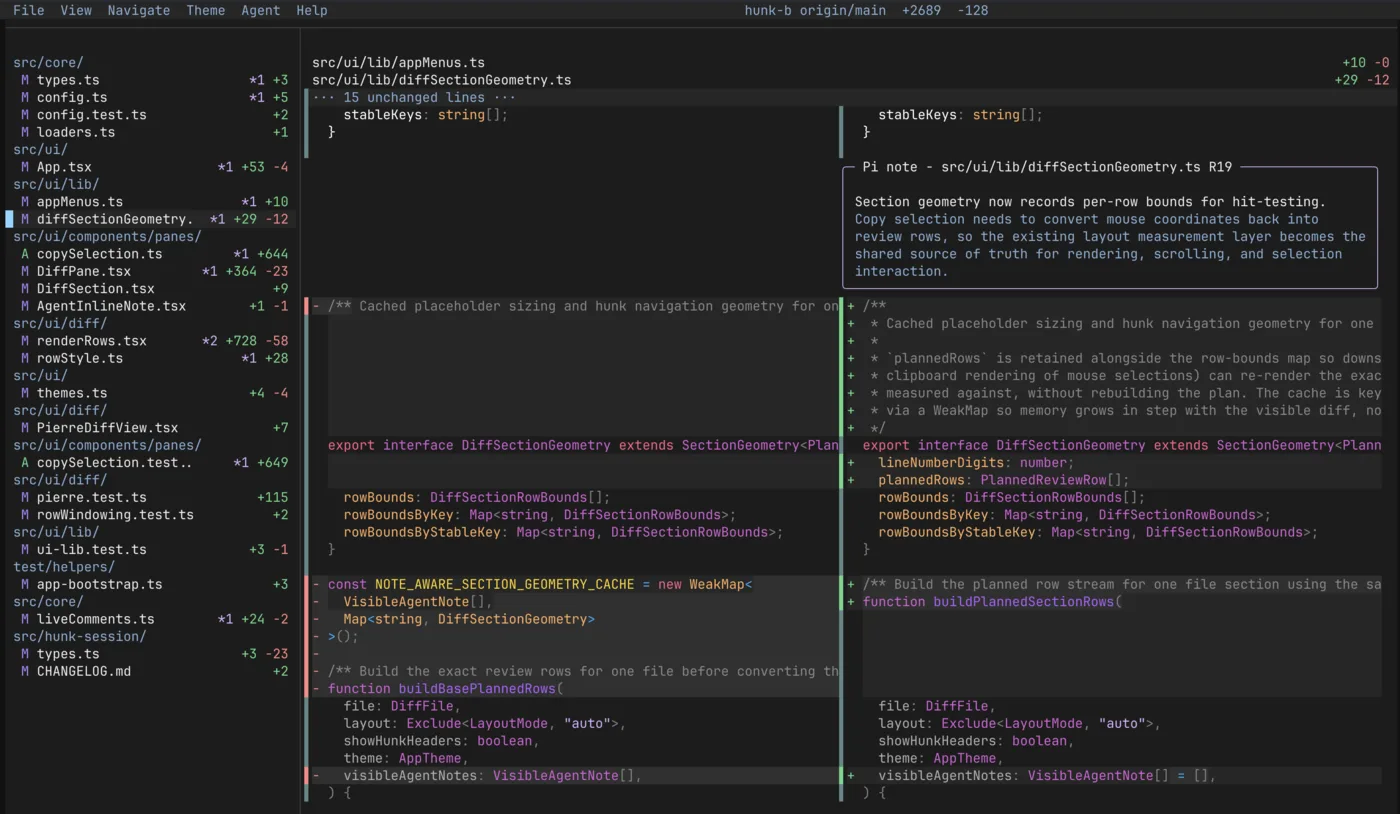 The sidebar indexes the same continuous stream shown in the main pane. Selecting a file jumps to it without hiding the rest of the changeset. ## Review a commit
```bash
hunk show # latest commit
hunk show HEAD~1 # an earlier commit
```
A target is a Git ref or, in Jujutsu and Sapling workspaces, a native revset. Add path filtering after `--`:
```bash
hunk show HEAD~1 -- src/ui README.md
```
## Keep the review fresh
```bash
hunk diff --watch
```
Hunk reloads file- and Git-backed input while preserving the review experience. Watch mode is continuous; press `q` when finished. ## Bring in an agent Keep Hunk open, then in another terminal ask your coding agent to run `hunk skill path` and use the returned review skill. Continue with [Review with an agent](/docs/agents/review-with-an-agent/).
# Agent context and experimental STML notes
> Load review rationale from a sidecar and opt into rich terminal-native note markup.
Live session comments are the recommended workflow. A sidecar is useful when the annotations already exist before Hunk starts or need to travel with a patch. ## Load a JSON sidecar
```bash
hunk diff --agent-context notes.json
hunk patch change.patch --agent-context notes.json
```
The sidecar can set narrative file order and attach hunk-level annotations. Keep it concise: one changeset summary, short file summaries, and only rationale that improves the review. The visible UI prioritizes hunk notes rather than generic explainer cards. A compact example lives at `examples/3-agent-review-demo/agent-context.json` in the repository. ## Opt into STML STML is experimental rich markup for terminal note bodies. It is off by default:
```bash
hunk --experimental diff --agent-context notes.json
```
The launch flag is the authority for that session; a reload cannot turn the capability on later. Plain `summary` text remains required as the fallback. Before sending markup, an agent should inspect support and width:
```bash
hunk session context --repo . --json
hunk markup guide
hunk markup render - --width
```
Only send `--markup` when `experimentalFeatures` includes `stml`. Keep colors symbolic and markup compact so notes retain a clear spatial relationship to their code.
# Comments and annotations
> Attach human or agent review notes to the code and navigate them in context.
Notes are hunk-specific and render beside the rows they explain. Hunk intentionally keeps them in the review flow rather than in a separate comments screen. ## Add one agent comment
```bash
hunk session comment add \
--repo . \
--file README.md \
--new-line 103 \
--summary "Tighten this wording"
```
Choose exactly one `--old-line` or `--new-line` target. Add `--focus` only when the new note should move the user's viewport. ## Apply a batch
```bash
printf '%s\n' '{"comments":[{"filePath":"README.md","newLine":103,"summary":"Tighten this wording"}]}' \
| hunk session comment apply --repo . --stdin
```
Every item needs `filePath`, `summary`, and exactly one target: `hunk`, `hunkNumber`, `oldLine`, or `newLine`. Hunk validates the complete batch before changing the live session. ## Inspect and clean up
```bash
hunk session comment list --repo .
hunk session comment list --repo . --type all
hunk session comment rm --repo .
hunk session comment clear --repo . --file README.md --yes
```
Use `--all --yes` to clear both live agent comments and human notes. Destructive clears require confirmation. ## Add a human note In the TUI, select a hunk and press `c` or click an add-note affordance. Human and agent notes are labeled by source. Use `{` and `}` to move through annotated hunks across the review stream.
# Live session control
> Inspect, target, navigate, and reload Hunk windows through the local session broker.
Each normal Hunk TUI registers with one loopback daemon. `hunk session ...` finds a registered window and sends it review actions. ## Find the session
```bash
hunk session list
hunk session get --repo .
hunk session context --repo .
```
Use `--repo ` for normal worktrees. Use an explicit session ID when multiple windows share a repository. ## Inspect without overloading context
```bash
hunk session review --repo . --json
```
This returns files and hunks. Add flags only when required:
```bash
hunk session review --repo . --include-notes --json
hunk session review --repo . --include-patch --json
```
## Navigate the visible window
```bash
hunk session navigate --repo . --file src/App.tsx --hunk 2
hunk session navigate --repo . --file src/App.tsx --new-line 372
hunk session navigate --repo . --next-comment
```
Hunk numbers are 1-based. Absolute navigation needs a file and exactly one hunk, old-line, or new-line target. ## Reload the review Always place `--` before the nested Hunk command:
```bash
hunk session reload --repo . -- diff
hunk session reload --repo . -- show HEAD~1 -- README.md
```
Advanced reloads can target the live window by `--session-path` and load from a separate `--source` directory. Prefer `--repo` until those roles genuinely need to differ. ## Diagnose local access If a visible Hunk window does not appear in `session list`, an agent sandbox may block loopback access. Hunk's daemon is intentionally local-only; retry with the agent's network/sandbox permission rather than exposing it remotely. `hunk daemon serve` is available for manual startup or daemon debugging.
# Hunk review skill
> Load the versioned machine guidance that teaches coding agents Hunk's live review protocol.
Hunk ships a generated `hunk-review` skill with every installation. It is the authoritative machine-facing workflow for session selection, efficient review inspection, navigation, reloads, and comments. ## Locate the installed skill
```bash
hunk skill path
```
Load or symlink the returned file according to your coding agent's skill mechanism. Resolve the path again after upgrades so the guidance stays aligned with the installed CLI. For agents that need a stable web-readable URL, use the [generated Hunk review skill](/docs/hunk-review-skill.md). The published artifact and installed skill are rendered by the same function; neither is a handwritten copy. ## Why it is generated The checked-in `skills/hunk-review/SKILL.md` is rendered from typed command metadata and agent error definitions in Hunk's source. Parser help, examples, constraints, and common remedies therefore share ownership instead of drifting as separate handwritten copies. Do not edit the generated skill directly. Contributors change `src/hunk-review/skillDocument.ts`, `src/session/agent/surface.ts`, or `src/session/agent/errors.ts`, then run:
```bash
bun run generate:skill
```
## Use it safely The skill instructs agents to avoid launching interactive commands such as `hunk diff` themselves. The user owns the TUI; the agent talks to an already-live review through `hunk session *`. For the human workflow around that surface, start with [Review with an agent](/docs/agents/review-with-an-agent/).
# Review with an agent
> Let a coding agent inspect and guide a live Hunk review without giving up the human review UI.
The Hunk window stays with you. Your agent uses non-interactive `hunk session` commands from another terminal to inspect the same review, navigate it, and leave inline notes. ## Start the review
```bash
hunk diff
```
Keep that window open. Normal Hunk sessions register with a local loopback daemon so the session CLI can find them. ## Give the agent the skill In the agent's shell, locate the skill bundled with the installed Hunk version:
```bash
hunk skill path
```
Ask the agent to load that file and use it for the review. A portable prompt is:
```text
Load the Hunk skill and use it for this review. Run `hunk skill path` to get the skill path.
```
The skill tells agents not to launch the interactive TUI themselves. It teaches them to use the session surface instead. ## What the agent does A typical agent flow is:
```bash
hunk session list
hunk session get --repo .
hunk session review --repo . --json
hunk session navigate --repo . --file src/App.tsx --hunk 2
hunk session comment add --repo . --file src/App.tsx --new-line 42 --summary "Check this boundary"
```
`review --json` exposes structure without forcing the full patch into agent context. The agent should request `--include-patch` only when it actually needs raw unified diff text. 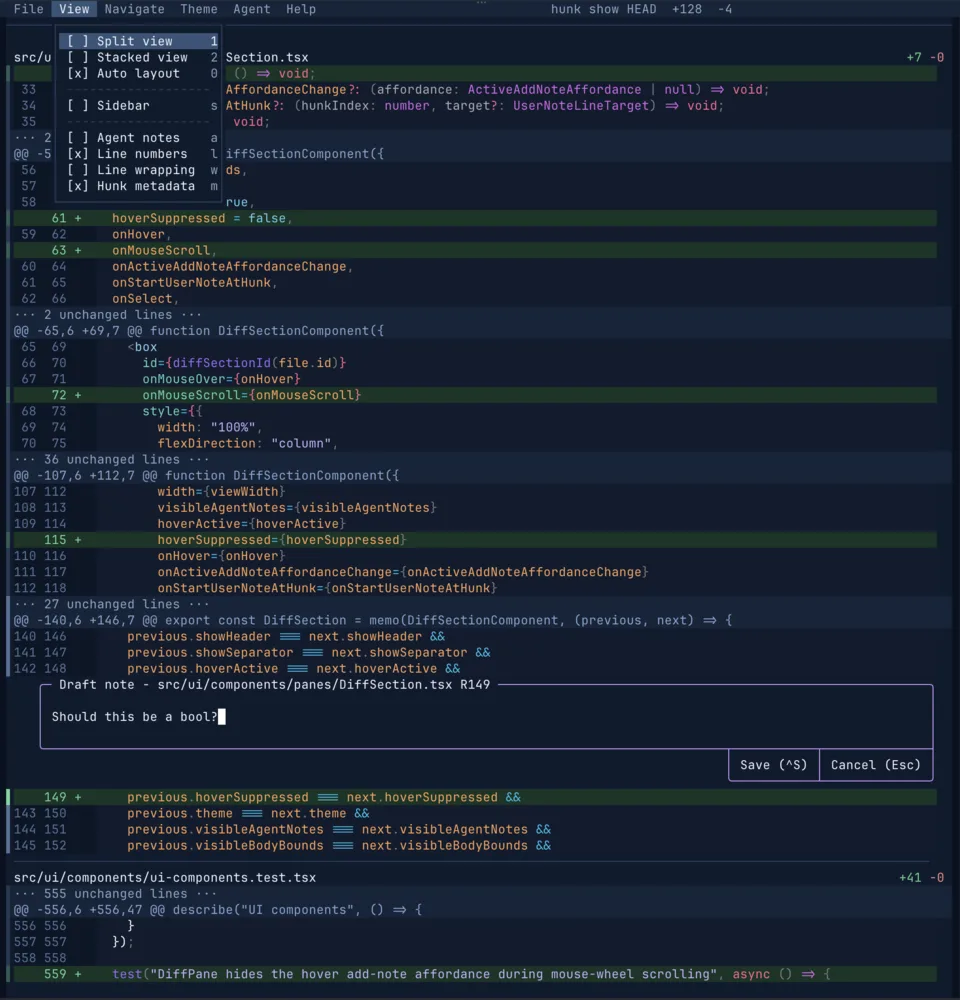 Agent notes remain spatially attached to the code they explain. Use `{` and `}` to move between annotated hunks while keeping the full changeset visible. ## Give the agent the docs These docs are published as plain Markdown so an agent can read them without scraping HTML: * [/llms.txt](https://hunk.dev/llms.txt) — index of every page, for pulling only what is needed. * [/llms-small.txt](https://hunk.dev/llms-small.txt) — compact corpus for tight context budgets. * [/llms-full.txt](https://hunk.dev/llms-full.txt) — the complete docs in one file, around 130KB. Any docs page URL also returns its Markdown source with `.md` appended, so `https://hunk.dev/docs/reference/cli.md` is the CLI reference as the agent should read it. ## Keep control The agent can guide the visible selection and add agent-authored notes, but you remain in the review stream and can navigate normally. Ask it to summarize when finished, then use `{` and `}` to walk annotated hunks.
# Configuration
> Layer user and repository TOML settings, then override them per command or from the CLI.
Hunk reads TOML preferences from a user file and an optional repository file: * `~/.config/hunk/config.toml` (or the platform/XDG config location) * `.hunk/config.toml` at the repository root Repository settings override user settings. Command sections then override their layer's top-level values, pager sections apply to pager-style sessions, and explicit CLI flags win last. ## Start with useful defaults
```toml
theme = "github-dark-default"
mode = "auto"
vcs = "git"
watch = false
exclude_untracked = false
line_numbers = true
tab_width = 4
wrap_lines = false
hunk_headers = true
menu_bar = true
sidebar = "auto"
agent_notes = false
transparent_background = false
```
Use only the keys you want to change; built-in defaults fill the rest. ## Scope a command
```toml
mode = "auto"
[vcs]
watch = true
[pager]
menu_bar = false
wrap_lines = true
```
Command sections are named after the input Hunk parses, which is not always the command you type. In particular, `hunk diff` on a repository reads `[vcs]`, not `[diff]`: | Section | Applies to | | -------------- | ------------------------------------------------- | | `[vcs]` | `hunk diff` working-tree and target reviews | | `[show]` | `hunk show` commit reviews | | `[stash-show]` | `hunk stash show` reviews | | `[diff]` | two-file comparisons (`hunk diff `) | | `[patch]` | `hunk patch` reviews | | `[difftool]` | `hunk difftool` pair reviews | `[pager]` is an overlay applied after the matching command section whenever the invocation uses pager-style behavior. ## Save interactive changes When you change view preferences and quit, Hunk can offer to persist them. It writes to an existing repository config when one exists; otherwise it keeps personal view choices in the user config. Set `prompt_save_view_preferences = false` to disable that prompt. The [config reference](/docs/reference/config/) lists every key, default, and alias. The root-only `[extensions]` table has its own guide: [Extensions](/docs/extend/extensions/).
# Keybindings
> Remap Hunk's named commands to your own keys with the user-config keybindings table.
Every keyboard shortcut is a named command. A `[keybindings]` table in your user config maps command ids to the chords you want them on:
```toml
[keybindings]
"hunk.app.quit" = "ctrl+x" # one chord
"hunk.review.nextHunk" = ["]", "ctrl+n"] # several chords for one command
"hunk.review.focusFilter" = "f" # takes "f" away from page-down
"hunk.view.toggleMenuBar" = false # unbind it entirely
"myext.toggle" = "ctrl+g" # extension commands too
```
Every id starts with the name of whoever owns the command: Hunk's own commands live under `hunk.`, and an extension's live under its extension id. `hunk` is a reserved extension id, so an extension can never shadow a built-in command. ## Rules * **User bindings replace defaults.** The chords you list are the complete set of keys that command answers to. * **A key you bind is yours.** Any command holding the same chord only as a default gives it up and keeps its other keys. * **`false` (or `[]`) unbinds a command**, leaving its keys doing nothing. * Two entries claiming one chord is a conflict: the first in the file wins and the session reports the other. Unknown ids and unusable chords are reported the same way, and the rest of the table still applies. ## Chord grammar Chords join `ctrl`, `alt`/`option`, `cmd`/`meta`, and `shift` with `+` around a base key: a character (`"y"`, `"["`), an uppercase letter for its shifted form (`"G"`), or a named key (`"tab"`, `"pageup"`, `"left"`, `"f2"`). For shifted symbols or digits, write the resulting character (`"!"`, not `"shift+1"`). `ctrl+` also matches an unnamed bare control byte; named Tab and Enter events stay distinct. ## Find command ids The menus and the in-app help (`?`) show the keys for the commands they present, so a remap changes what they advertise. The full table of built-in command ids and their default keys lives in [`docs/keybindings.md`](https://github.com/modem-dev/hunk/blob/main/docs/keybindings.md) in the repository. Commands listed without a default key remain callable by id and can be assigned a shortcut; some also appear in menus. Keys owned by a dialog, menu, or focused text input — `Esc`, `Enter`, `Ctrl-S` while writing a note — belong to those widgets and are not remappable. `[keybindings]` is read from your user config only, never from a repository's `.hunk/config.toml`: which keys do what is a property of your keyboard and habits, so a checkout you review cannot rearrange them.
# Layout and display
> Control responsive structure, line treatment, review chrome, and note visibility.
Hunk uses the same normalized review model in every layout. ## Pick a layout policy
```bash
hunk diff --mode auto
hunk diff --mode split
hunk diff --mode stack
```
* `auto` chooses split on wide terminals and stack on narrow ones. * `split` keeps before and after columns side by side. * `stack` shows changed rows in a single-width flow. Explicit split and stack choices override responsive behavior. Press `0`, `1`, or `2` to switch while reviewing. ## Tune code rows
```bash
hunk diff --no-line-numbers --wrap --no-hunk-headers --tab-width 2
```
Paired flags let scripts express either state: `--line-numbers` / `--no-line-numbers`, `--wrap` / `--no-wrap`, and `--hunk-headers` / `--no-hunk-headers`. Tab width accepts an integer from 1 through 16. ## Tune review chrome TOML settings cover persistent display details:
```toml
mode = "auto"
line_numbers = true
wrap_lines = false
hunk_headers = true
menu_bar = true
sidebar = "auto"
agent_notes = false
copy_decorations = false
transparent_background = false
cursor_line = "row"
```
`transparent_background` lets the terminal paint Hunk surfaces; turn it off when exact theme surfaces matter more than matching terminal transparency. `cursor_line` chooses how the line you are on is marked: `row` highlights the whole row, `number` marks only its line number, and `off` removes the marker and returns `k` / `j` to scrolling the view one row at a time. Switch it mid-review from the View menu, or set `--cursor-line